Odoo Advance Payment for Sales and Purchase
The Advance Payment for Sales and Purchase app simplifies the process of managing upfront payments within the platform. It enables users to easily record partial payments on sales and purchase orders, specify advance amounts, and automatically generate corresponding customer or vendor payments. The app provides flexibility to update or reset these payments even after order confirmation, giving managers full control over cash flow and billing. By streamlining workflows, improving financial transparency, and reducing manual work, this app helps businesses of all sizes ensure smooth transactions, better cash management, and improved financial planning.
Odoo Advance Payment for Sales and Purchase
The Advance Payment for Sales and Purchase app simplifies the process of managing upfront payments within the platform. It enables users to easily record partial payments on sales and purchase orders, specify advance amounts, and automatically generate corresponding customer or vendor payments. The app provides flexibility to update or reset these payments even after order confirmation, giving managers full control over cash flow and billing. By streamlining workflows, improving financial transparency, and reducing manual work, this app helps businesses of all sizes ensure smooth transactions, better cash management, and improved financial planning.
10-day module exchange guarantee
- The Advance Payment for Sales and Purchase app simplifies how businesses manage upfront payments within Odoo.
- This app allows users to record partial payments on sales and purchase orders easily and accurately.
- When enabled, users can specify an advanced amount, choose the right payment journal, and generate corresponding customer or vendor payments automatically.
- The app offers flexible options to update or reset advance payments even after order confirmation, giving managers full control over cash flow and billing processes.
- It streamlines your workflow by seamlessly handling all advanced payments, improving financial transparency, and reducing manual effort.
- Suitable for businesses of all sizes, this app helps ensure smooth transactions, effective cash management, and better financial planning.
- Easily specify advanced amounts on sales and purchase orders. The system generates customer or vendor payment record details automatically.
- Set and update advance payment amounts anytime. Managers can modify the advance before or after order confirmation, for flexibility.
- Click the "Advance Payment" button to open a wizard. Enter the amount and select the journal type, then click "Create" to generate the advance payment record.
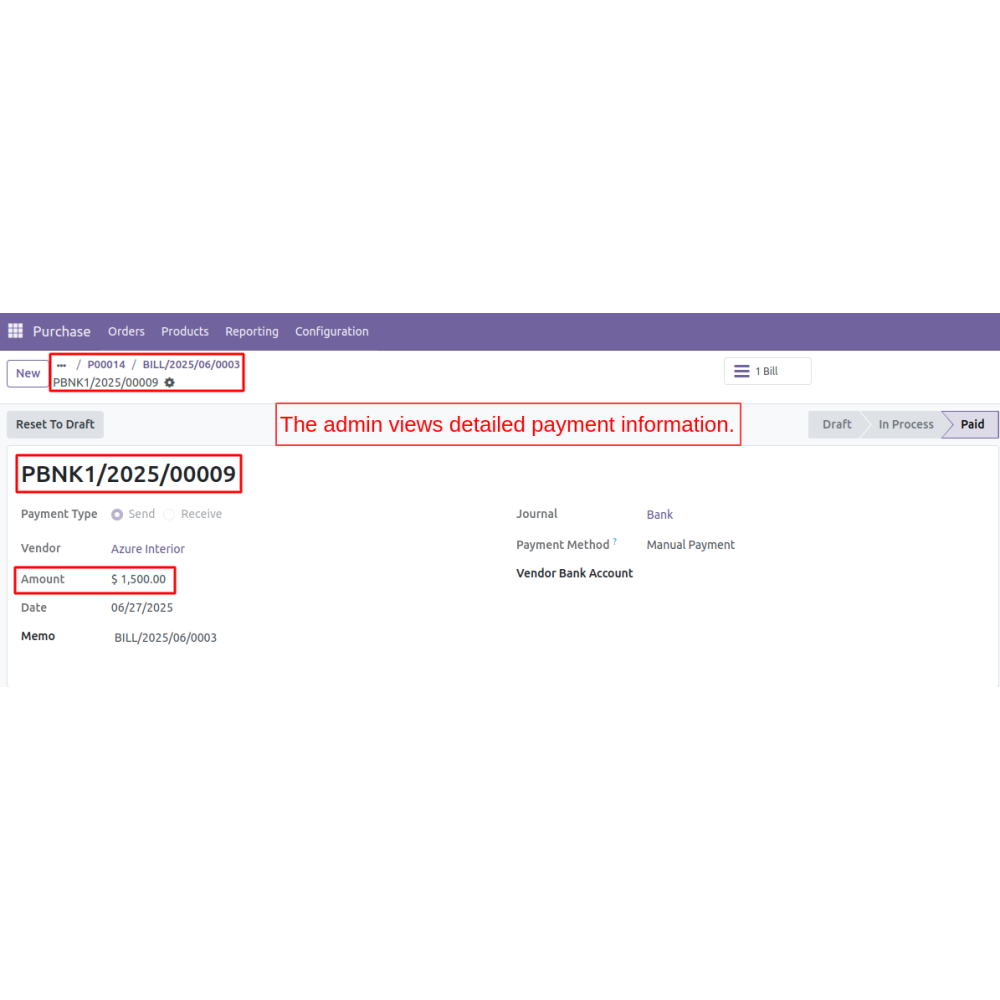
- All advance payments appear in the dedicated tab. Clicking on a record opens detailed information, including bank number and full payment details.
- To change an advance payment, click "Reset", modify the amount, and then save with "Update". Permissions are required, controlled through user settings.
- Only users with the "Access Reset Payment" permission can modify advance payments. Unauthorized users will see a warning if they attempt to make changes.
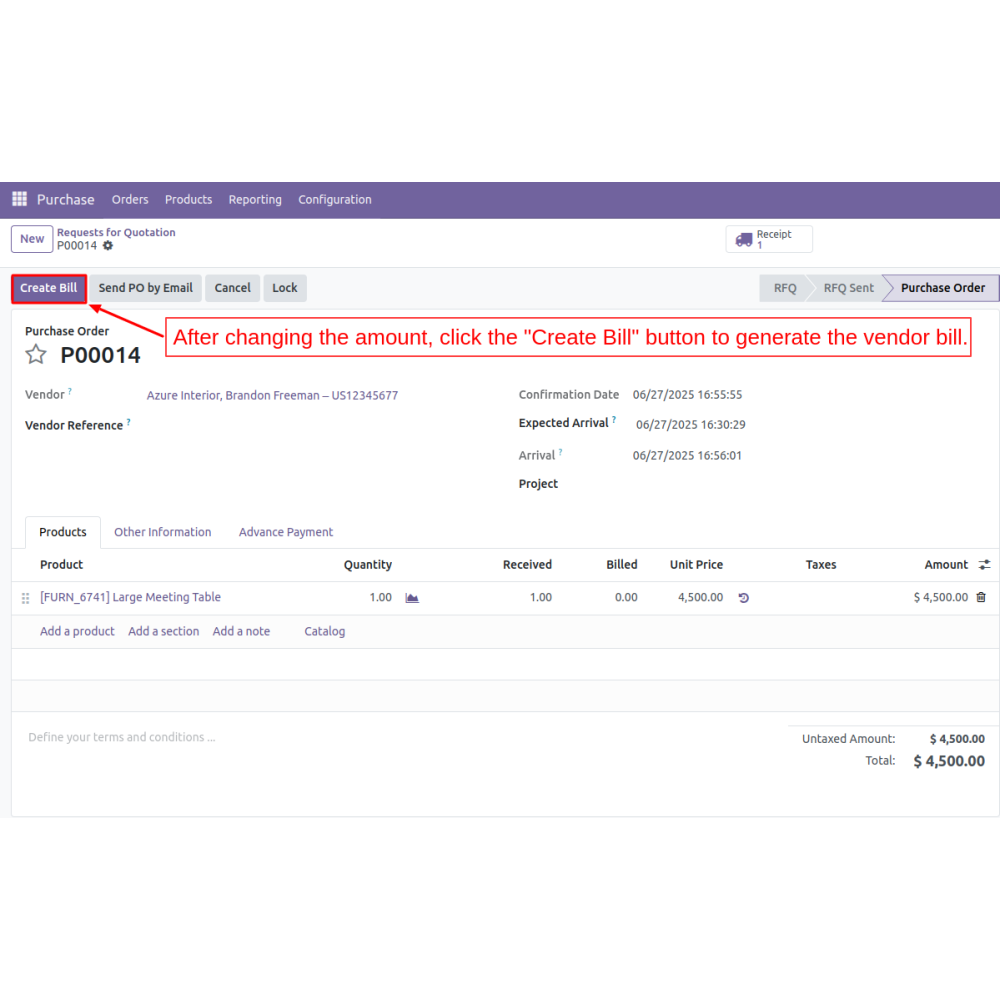
- Supports auto-generation of advance payments during quotation creation. Managers can review, modify, or reset payments at any point or process refunds if necessary.
- Manages upfront payments to improve cash management.
- Allows updates and resets of advance payments as needed.
- Automates advance payment processes, saving time.
- Keeps clear records of all advance transactions.
- Restricts payment modifications to authorized users.
- Provides clear visibility into all advance payments for accurate reporting.
- Permission to update or reset payments is controlled through the "Access Reset Payment" field in their user settings.
- When a sales or purchase order is initiated, the user proceeds normally through the order creation process.
- Before confirming the order, the user clicks the "Advance Payment" button.
- In the wizard, the user selects the Date, payment journal, and enters the advance amount.
- The user then clicks "Create Advanced Payment".
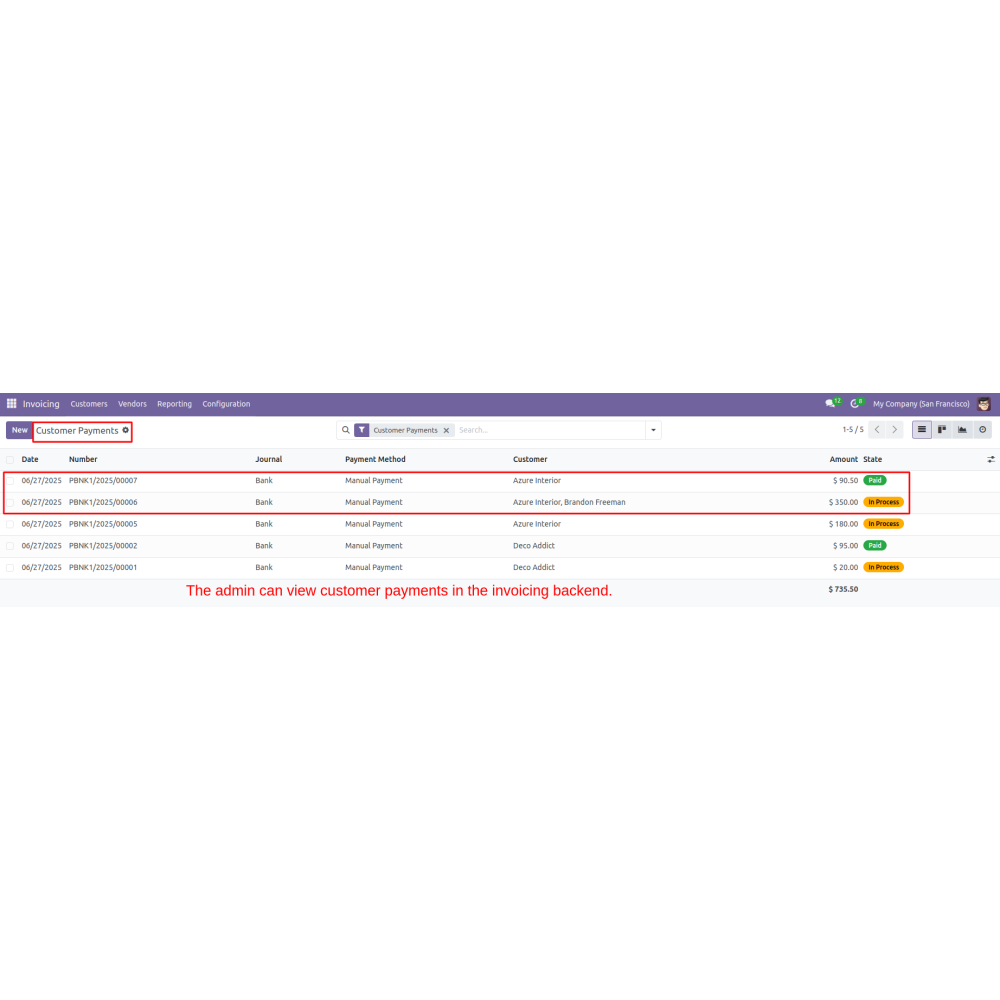
- The system automatically creates a customer payment record for sales orders or a vendor payment record for purchase orders.
- All advance payments appear in the Advance Payment tab associated with the order, showing key details like bank number, date, and amount.
- To view detailed information, the user clicks on the specific entry, opening the Advanced Payment Form View with full details.
- The modify an advance payment, authorized users click the "Reset" button.
- This clears the current value(s), allowing the user to input a new amount and select a different journal if necessary.
- After entering the new data, the user clicks "Update" to save changes.
How does this app help in managing advance payments?
Who can modify advance payments, and how is access controlled?
What kind of support do you offer after module purchase?
Do your Odoo extensions support multi-language functionality?
What versions of Odoo are compatible with your extensions?
Customer reviews
Top reviews
Emily Coleman
Madison Russell
Madison Russell
Efficient Management of Upfront Payments and Cash Flow

Improved Cash Management

Flexible Payment Handling

Efficient Workflow Process

Transparent Payment Tracking

Controlled Access Permissions

Enhanced Financial Oversight
Features of Advance Payment for Sales and Purchase
Advance Payment Recording
Specify advanced amounts easily on orders. The system creates corresponding customer or vendor payment records automatically.
Flexible Payment Management
Set and update advance payment amounts anytime. Managers can modify the advance before or after order confirmation, for flexibility.
Create Payments Wizard
Click the "Advance Payment" button to open a wizard. Enter the amount and select the journal type, then click "Create" to generate
View & Track Payments
All advance payments are listed in a dedicated tab. Clicking on a payment record displays full details, including bank information, providing transparency and easy tracking of payments.
Reset & Update Payments
Admins can reset an existing advance payment by clicking "Reset," then entering new details. After editing, clicking "Update" saves the changes, with permission controls.
Workflow & Permissions
Supports auto-generation during quotes. Only authorized users can modify or reset payments, streamlining management and security.
Power Up Your
Store — We Handle It All